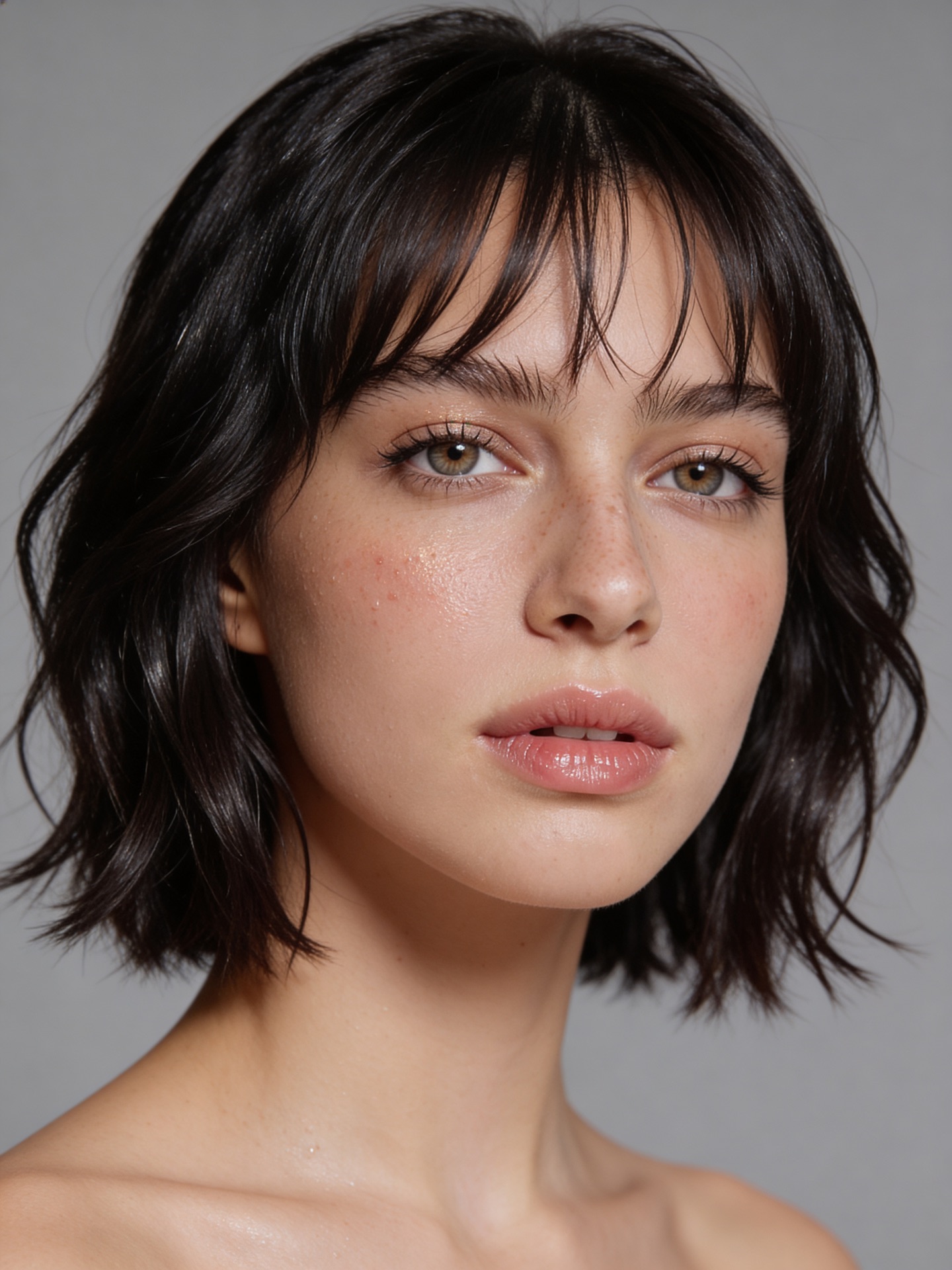
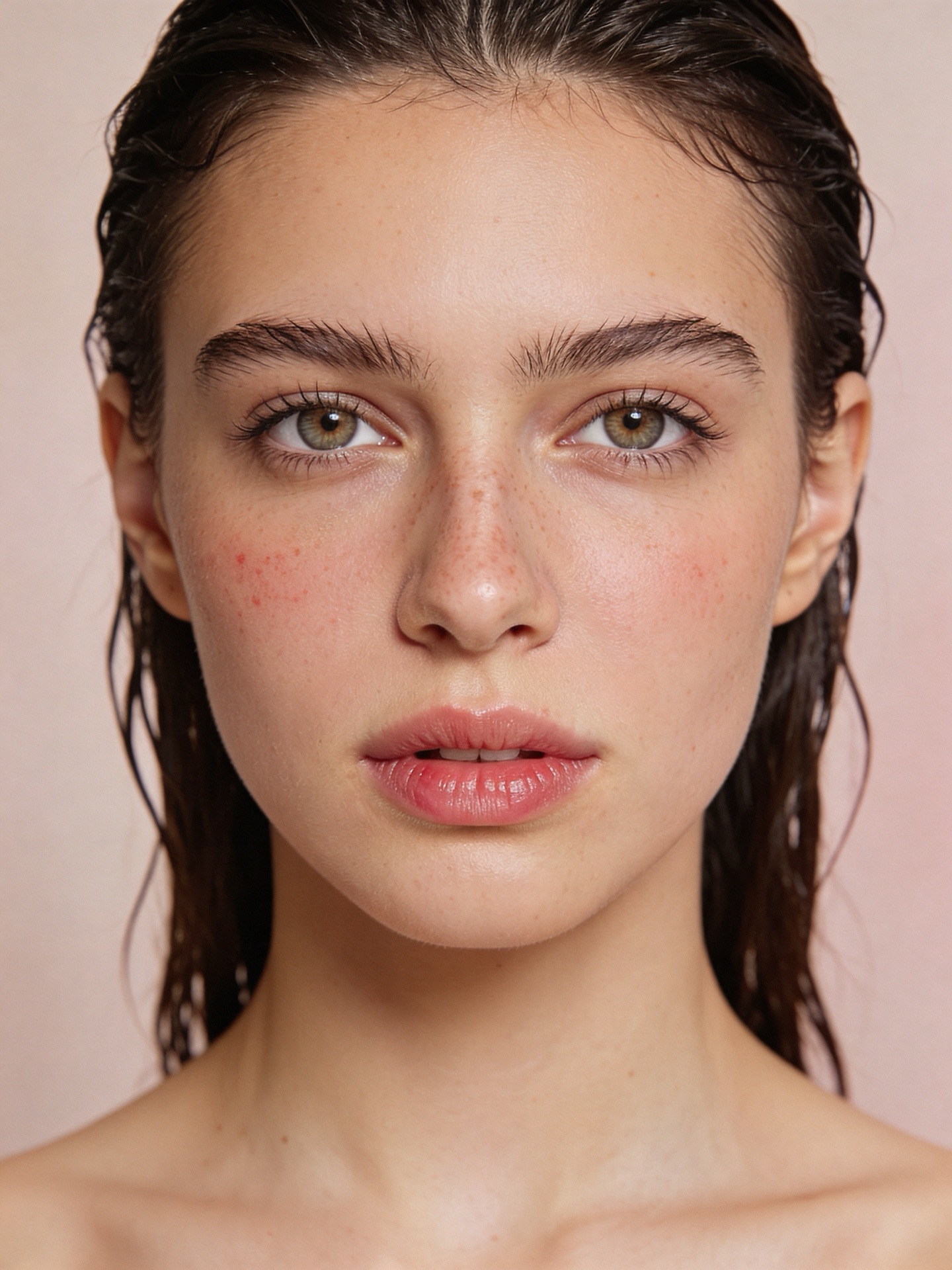
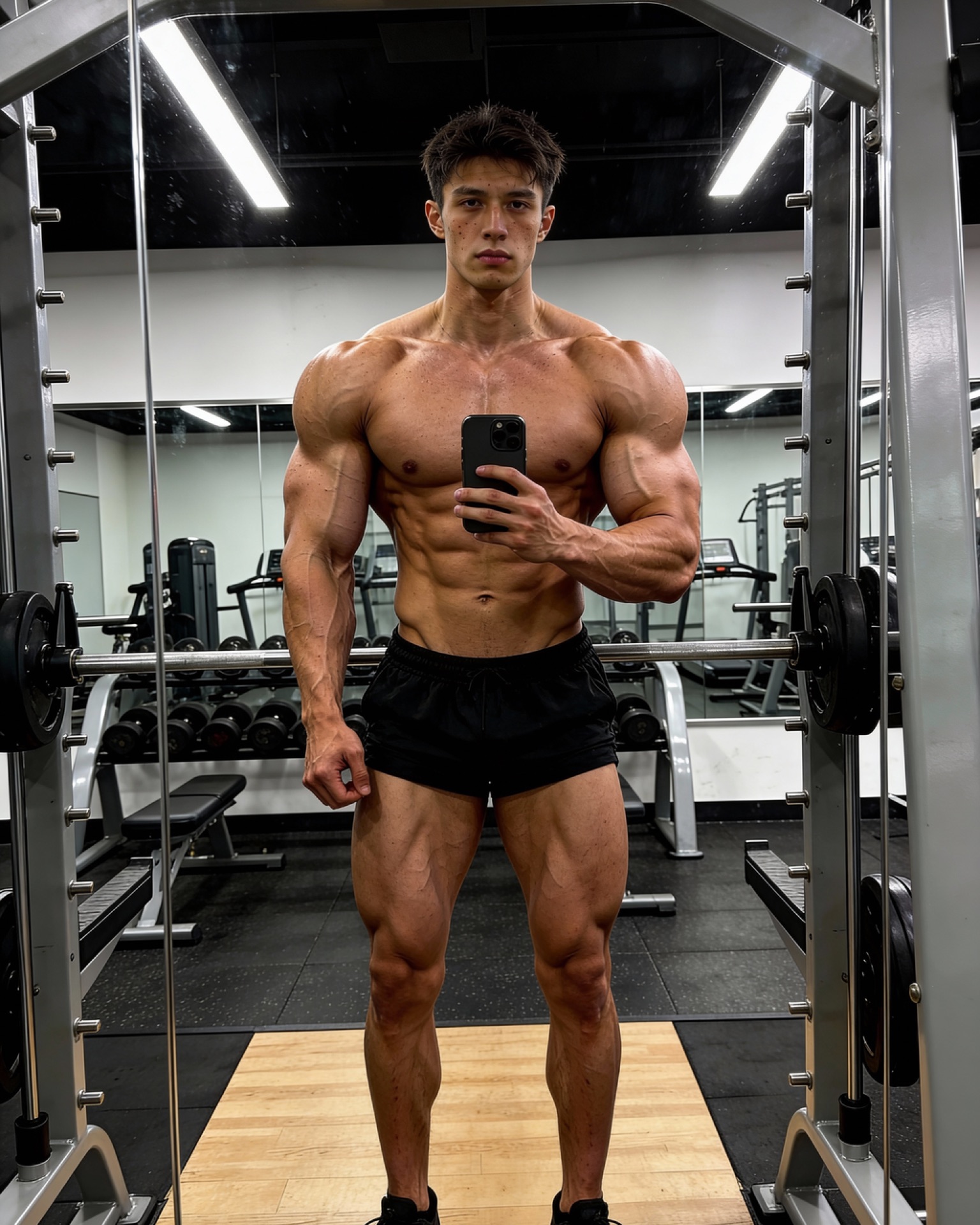
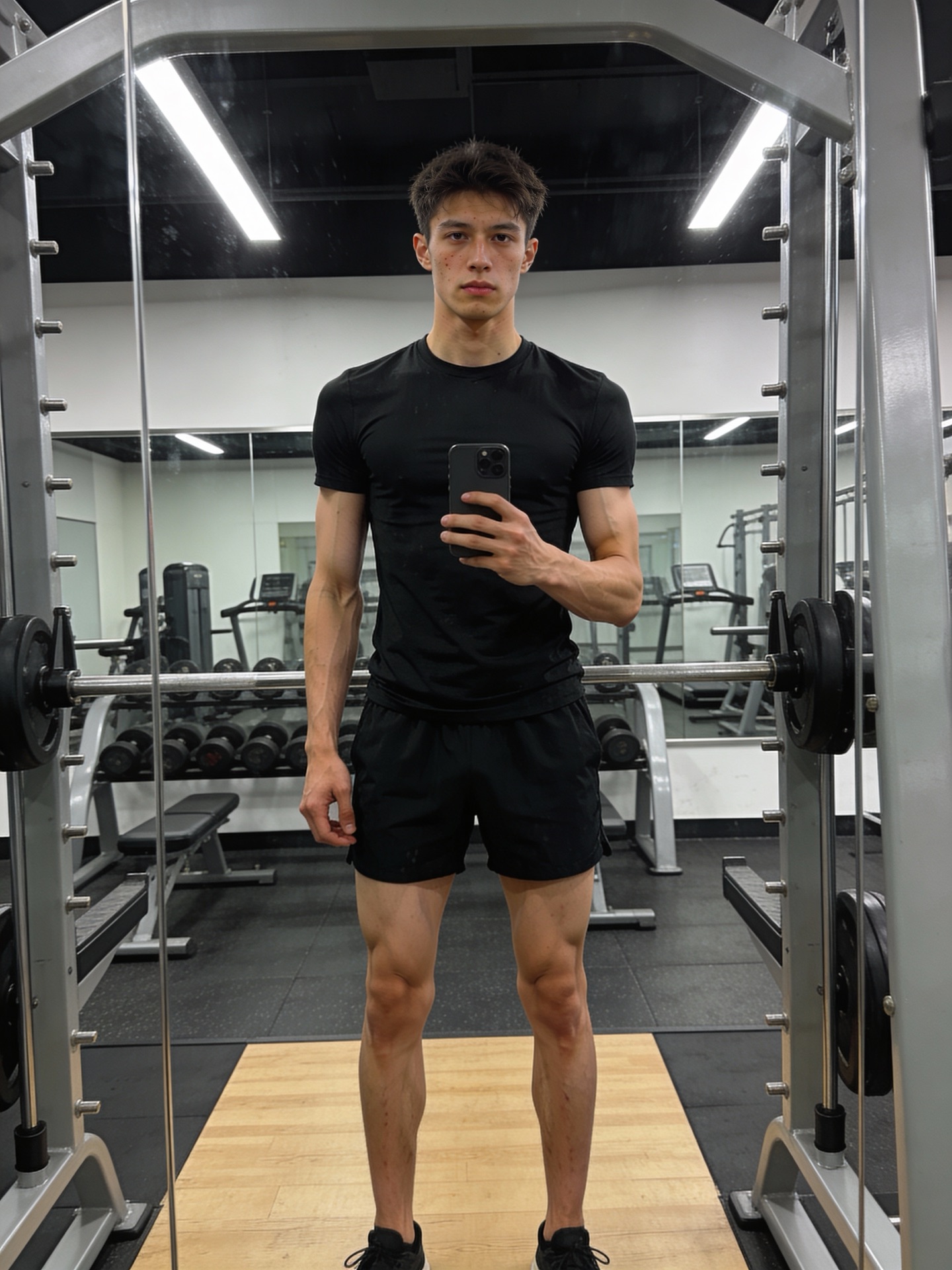
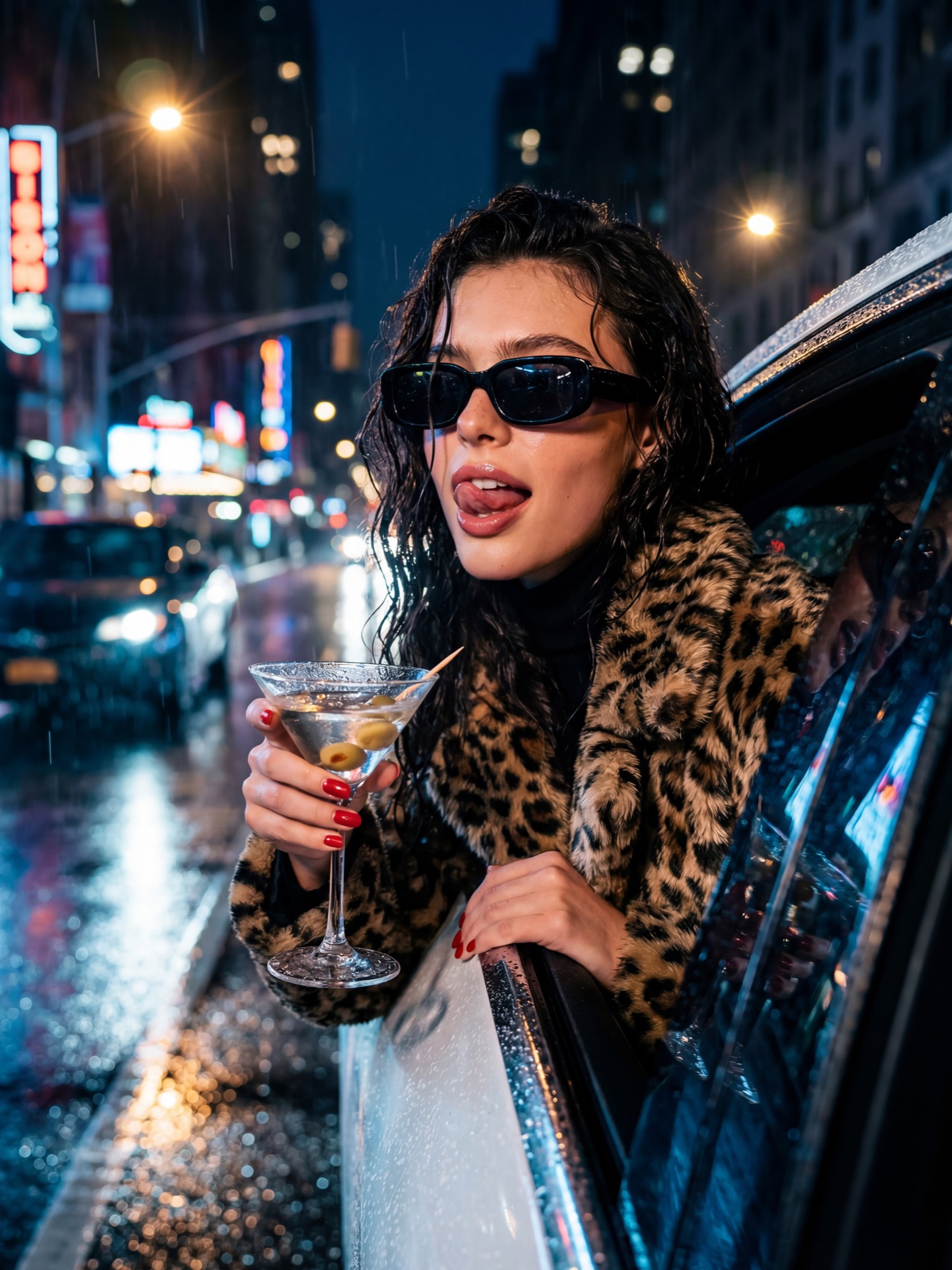
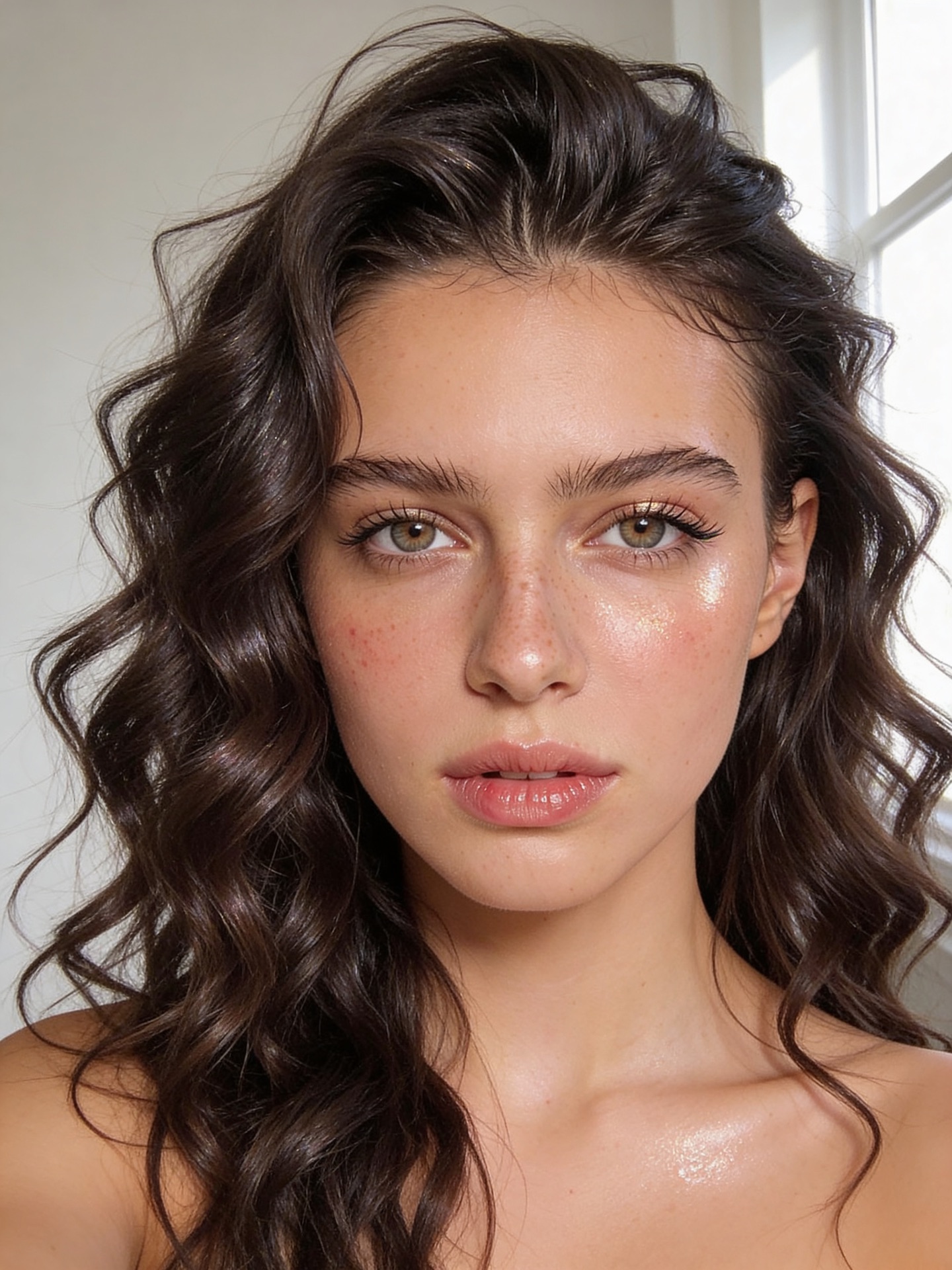
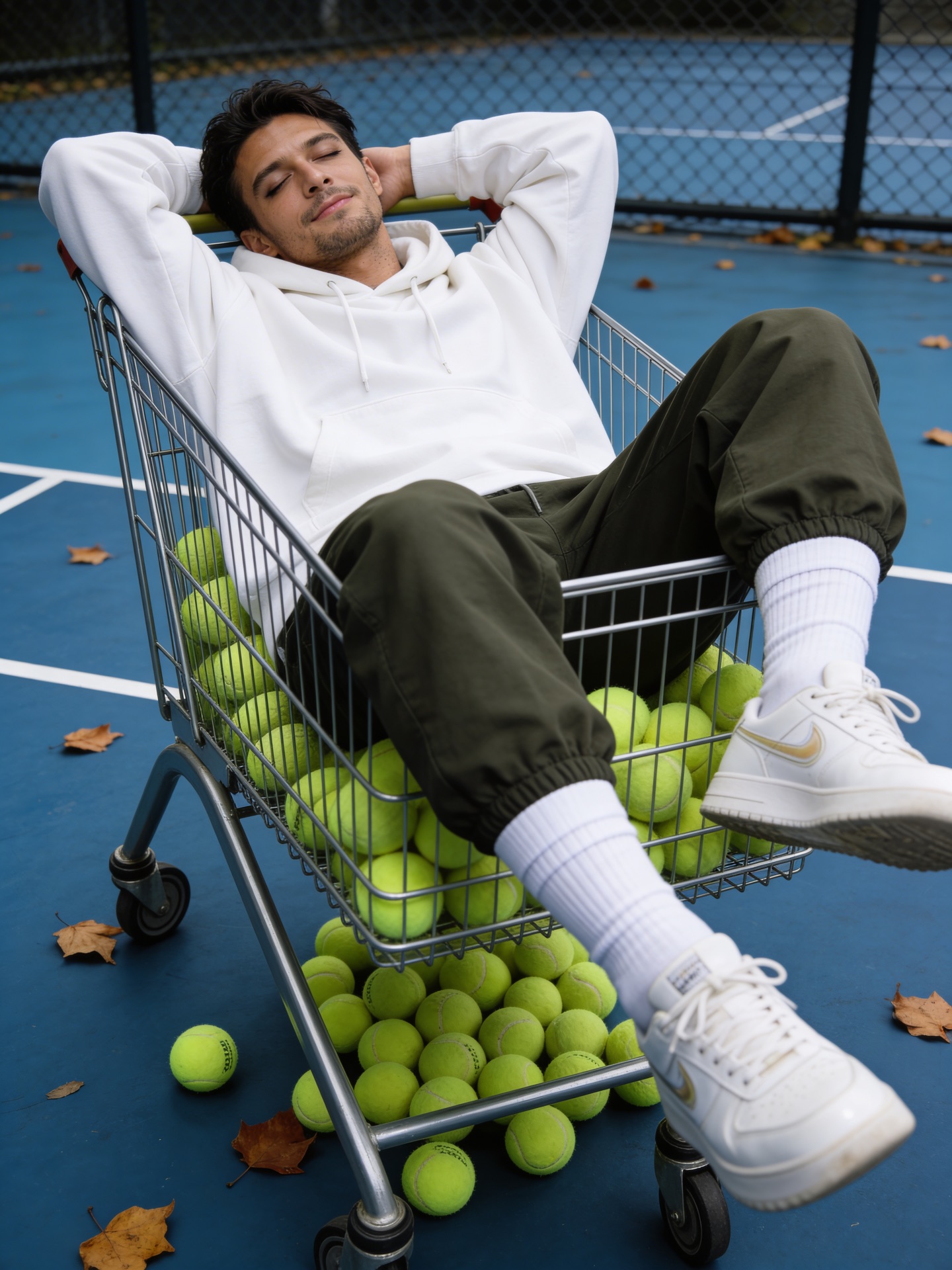
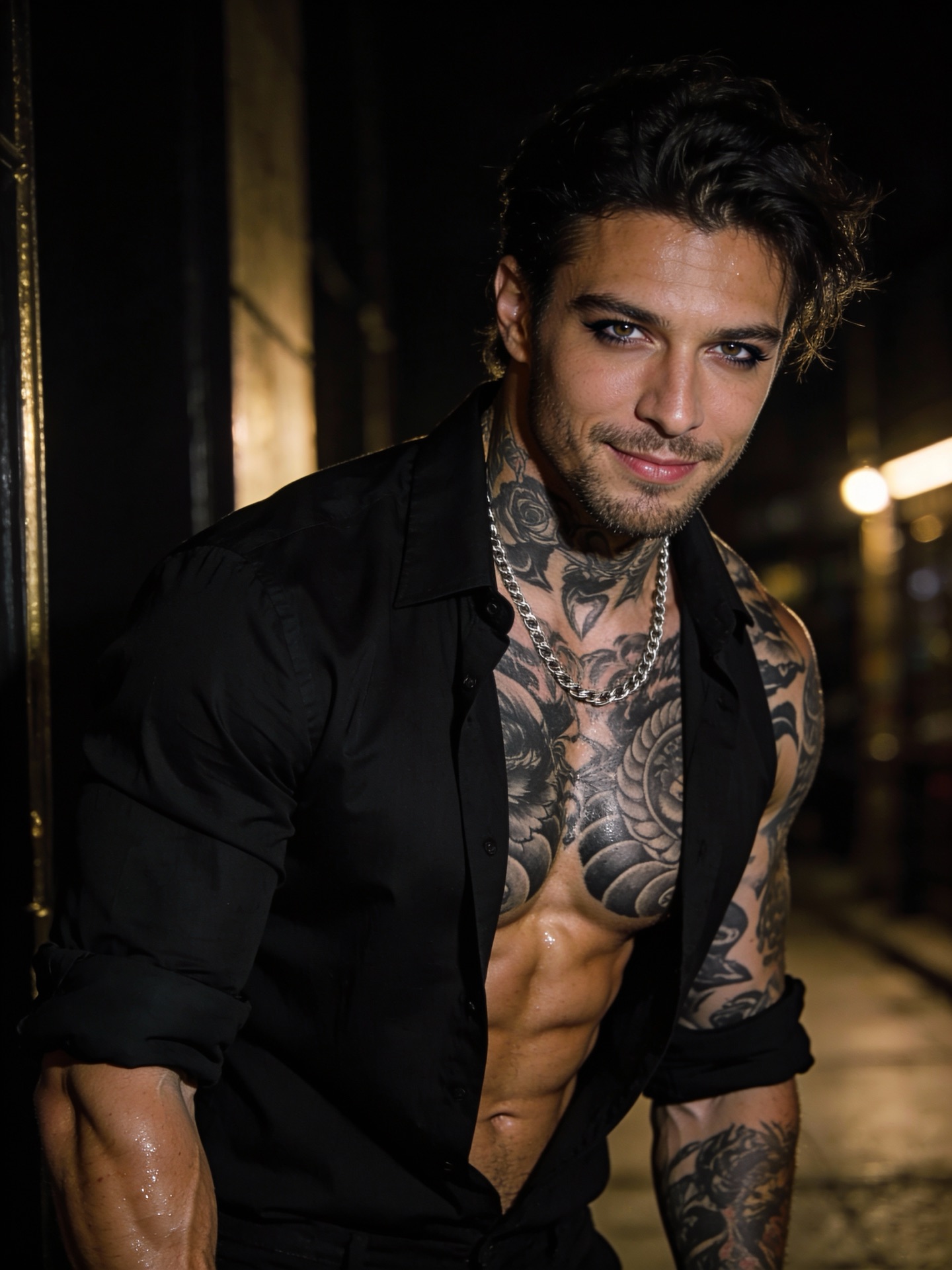
What is an AI images editor?
The editor works differently from traditional image editing tools. There are no masks, no layers, no manual selection. You upload a reference image — a photo, an AI-generated image, a product shot — describe the change you want in a prompt, and the model generates a new image based on that input.
Multiple reference images can be uploaded together: the model will adapt lighting, composition, and style across all inputs and merge them into one coherent result. For batch workflows, each image can be processed separately using the same prompt.
What can you do with the AI Image Editor?
Edit & Transform
Upload a reference and describe the change — outfit, pose, background, style. The model generates a new image based on your input while preserving identity and composition.
Combine References
Upload multiple images and the model merges them into one result. Mix subjects, backgrounds, and lighting from different sources into a single coherent image.
LoRA Style Templates
Apply predefined visual styles using LoRA templates. Choose a style, add a short prompt, and generate styled variations consistent with the template.
Batch Processing
Upload up to 100 images and apply the same edit to each independently. Each image becomes its own task — same prompt, no cross-influence between images.
Ready to try it? Create on OpenMov — no experience needed.
Start on OpenMov →When to use the editor vs the generator?
- Generator — you want something new, starting from a text description only
- Editor — you have a source image and want to change outfit, background, pose, or style
- Combiner — you have multiple images and want to merge elements from all of them into one result
In practice, most workflows combine both: generate a base image with the generator, then refine it in the editor. OpenMov supports both in one platform — no switching between tools.
How does the AI image editor work?
Step 2: Write a prompt describing the change ("change outfit to a black dress, keep face and pose")
Step 3: Select a model and aspect ratio
Step 4: Generate → download full-resolution result
For complex edits, apply changes step by step: first adjust pose or composition, then modify clothing or background in a separate generation. For identity preservation, always include a clear face image as one of the references.