What is image to video AI?
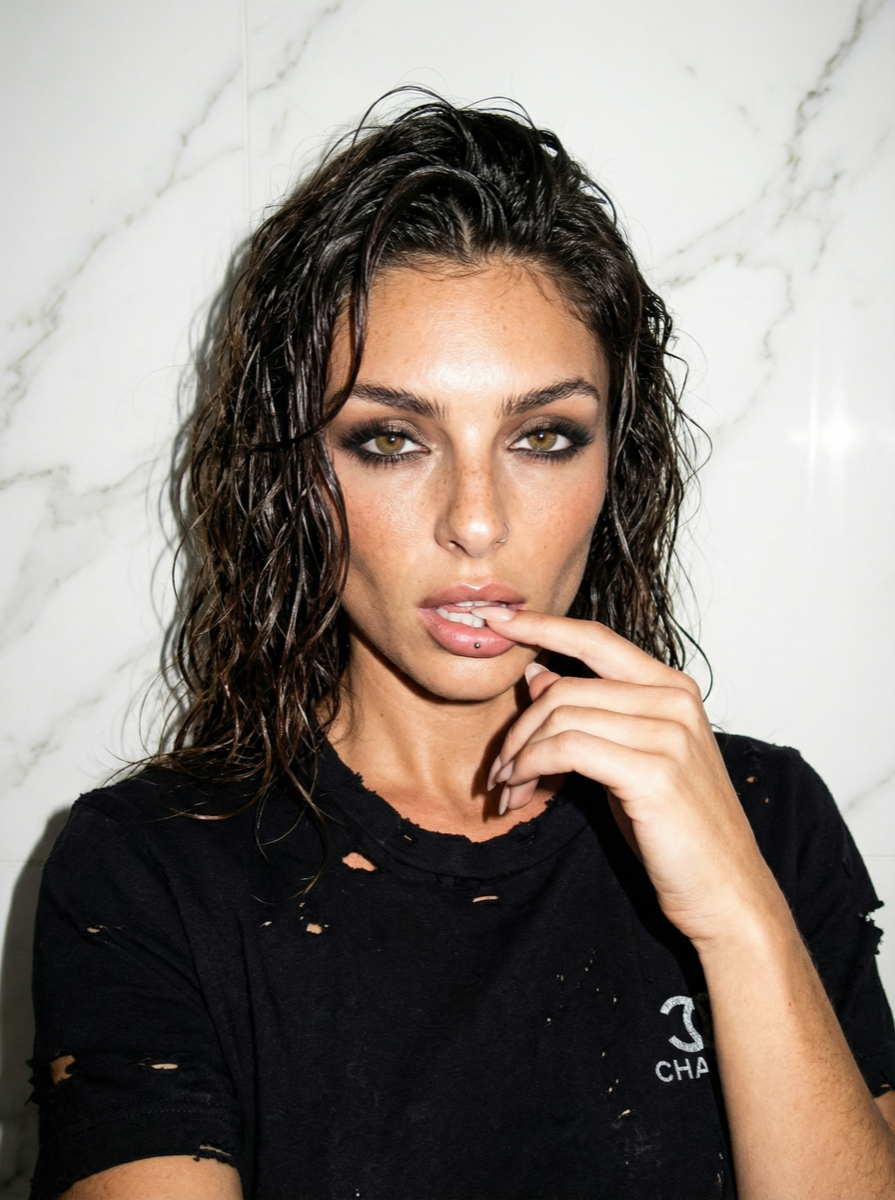
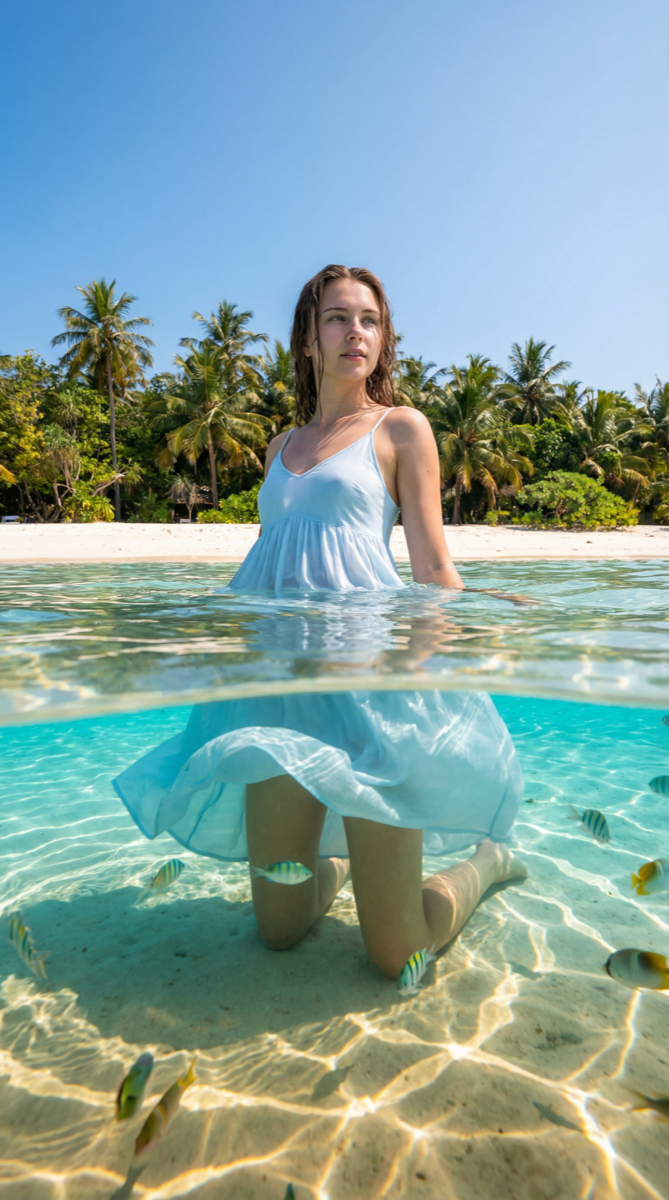
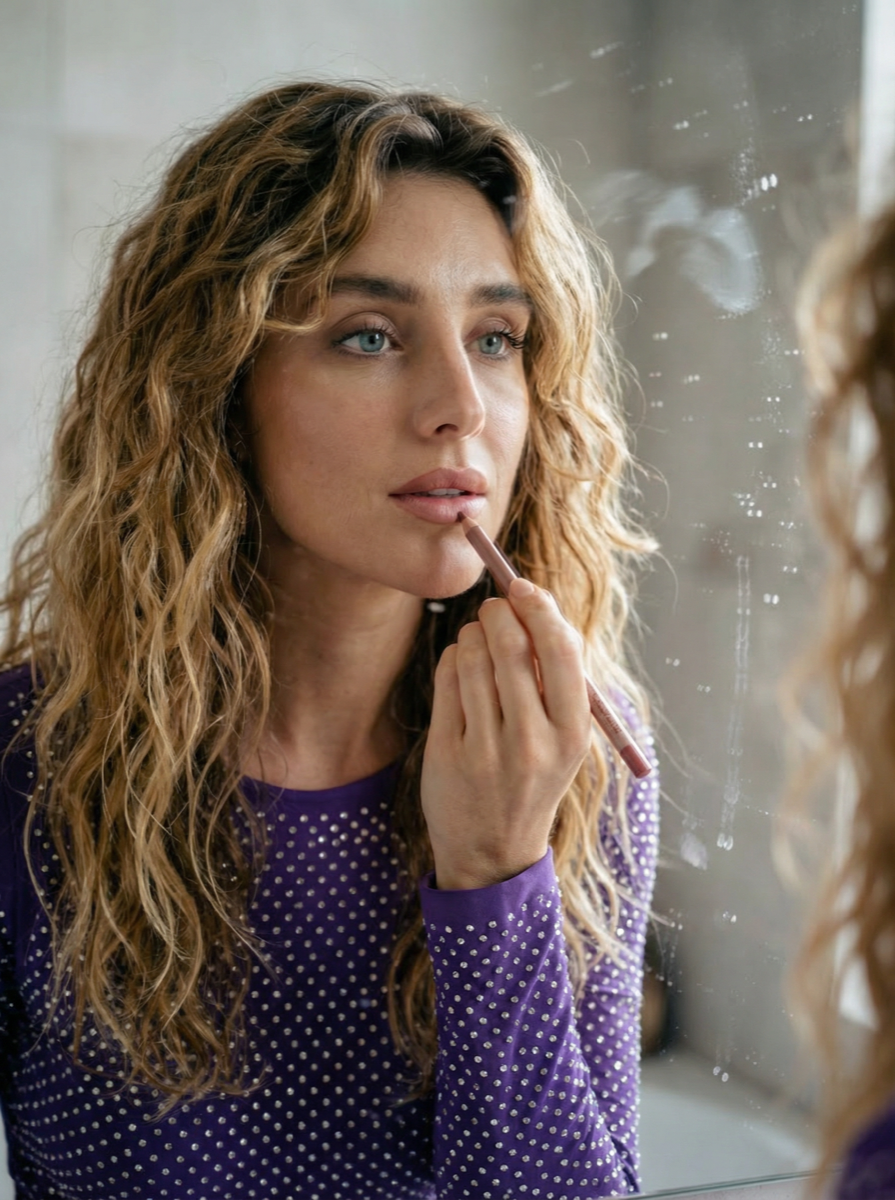
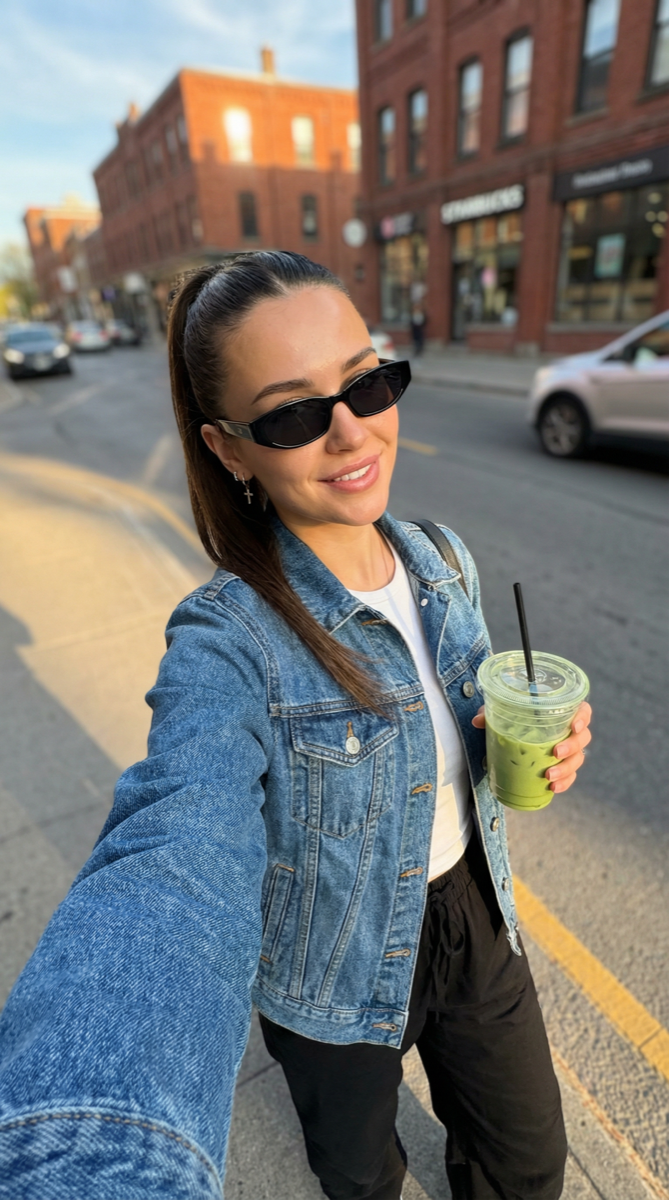
The model uses your uploaded image as a spatial and visual anchor, then generates temporal frames that show natural or prompted motion. Recent advances in video diffusion models enable generation of multiple seconds of motion with temporal coherence, allowing even fine details like fabric movement and hair motion to remain consistent throughout the generated clip. The result is a video where your original image is recognisable but animated — a portrait turns her head, a landscape shifts as the camera drifts forward, a product rotates smoothly.
What used to require a film crew or 3D animator now takes a single image and a motion prompt. OpenMov supports multiple engines — Kling 2.0, Seedance, WAN — each producing different motion quality and aesthetic for the same input.
How does OpenMov's image to video AI work?
Upload your image
Upload a JPG, PNG, or WebP as the starting frame. You can upload up to 100 images at once — each generates its own video in parallel. Works with photos, AI-generated images, illustrations, and product renders.
Add a motion prompt (optional)
Describe the movement you want. Follow the pattern: subject motion + camera movement + atmosphere. The more specific the prompt, the more controlled the output. You can also generate without a prompt and let the AI decide the motion.
Choose engine and duration
Pick your AI engine — Kling 2.0 for the highest quality, WAN for stylised results, Seedance for motion-rich content. Set the duration: 5 or up to 15 seconds.
Generate and download
Click Generate. Most videos are ready in under 2 minutes. Download in full quality, ready to publish or deliver to clients.
Try it now. Upload any image and generate your first AI video in minutes.
Animate My Image →How to write a motion prompt for image to video
The built-in prompt template on OpenMov is structured for you:
Examples that work well:
- Portrait: "Gentle head turn toward camera, hair moving slightly in wind, slow push-in, soft natural light"
- Landscape: "Slow camera drift forward, leaves rustling, golden hour light shifting"
- Product: "Product rotating slowly 360 degrees, smooth dolly around, studio lighting"
- Character: "Subject walks forward, natural stride, handheld camera feel, cinematic"
Three rules for stable motion output:
- One motion idea per prompt. "She turns, then walks, then looks up" confuses the model. Pick one action.
- Describe camera movement separately from subject motion. "Slow push-in" is camera. "Head turns" is subject. Both in one prompt gives you control over both layers.
- Match engine to motion type. Kling 2.0 handles complex portrait motion best. Seedance is optimised for energetic motion. WAN for stylised or artistic subjects.
Which engine is best for image to video?
| Engine | Best for | Motion quality | Max duration |
|---|---|---|---|
| Kling 2.0 | Portraits, complex scenes, cinematic output | Highest | 15s |
| Kling 1.6 | Batch processing, consistent results | High | 15s |
| Seedance | Dynamic motion, dance, action scenes | High | 10s |
| WAN | Stylised, artistic, experimental | Medium | 10s |
| Seedream | Image-guided, high detail preservation | High | 10s |
Running the same image through two engines costs more credits but regularly surfaces a significantly better result — each engine produces noticeably different motion style and quality for the same input.
What can you create with image to video AI?
Social Media Clips
Turn still photos into Reels and TikToks. One product image becomes multiple motion variations for A/B testing.
Product Animation
Bring product photos to life. Show texture, rotation, and context without a studio shoot or 3D animation.
AI Character Content
Animate AI-generated portraits into video. Consistent face, consistent motion — ideal for influencer content.
Video Ads
Convert static ad creatives into video variants. More formats, more placements, same source asset.
Real Estate & Architecture
Animate property renders and floor plans into walkthrough clips — without 3D rendering costs.
Game & Creative Projects
Bring concept art and character illustrations to life as animated previews and mood clips.